1. Introduction
We would like to thank you for choosing EliteHost Flask Template.
We made EliteHost Flask Template from the ground-up with flexibility in mind. Each element of EliteHost Flask Template is extremely customizable, where you can make EliteHost to reflect your own branding styles.
The guide gives you detailed methodologies about how you can customize EliteHost and make it fit your brand perfectly!
1. Download and Extract the Zip File:
Download the zip file containing all files integrated with Flask. Extract the contents of the zip file to your desired location.
2. Install Python and Flask:
Make sure Python (We recommend version 3.12.3) and Flask (We recommend version 3.0) are installed on your machine. If not already installed, you can download and install Python from the official website. To install Flask, you can use pip:
npm install
3. Running the Flask Application:
To run the Flask application, execute the command:
python app.py
4. Editing EliteHost Flask Template
Before all that you have to edit your template and place your own contents by replacing old demo contents, in this case, you will need a code editor such as – VScode, Sublime Text etc.
1.1. What's Included
After purchasing EliteHost Flask template on themeforest.net with your Envato account, go to your Download page. You can choose to download EliteHost Flask template only or the entire EliteHost Flask template package which contains the following files:
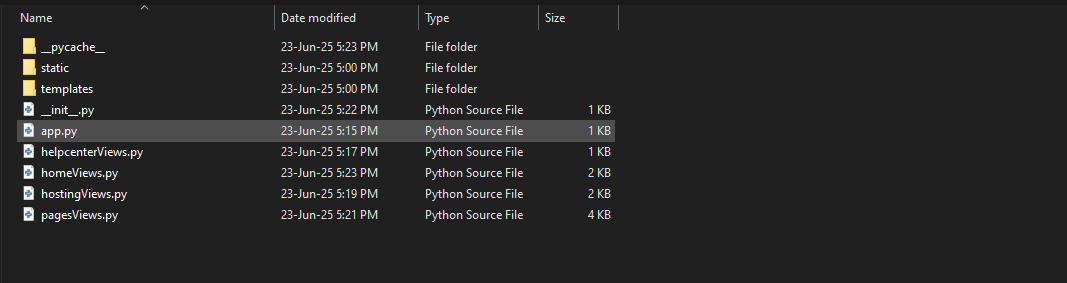
- EliteHost: A Flask template file.
- documentation: This folder contains what you are reading now.
Folder Structure:
- root Folder:
- src Folder:
File Structure:
- Page Structure:
- Component Structure:
1.2. Font
@import url("https://fonts.googleapis.com/css2?family=Roboto:ital,wght@0,100;0,300;0,400;0,500;0,700;0,900;1,100;1,300;1,400;1,500;1,700;1,900&display=swap");
1.3. Source File (CSS)
                            <link rel="preload stylesheet" href="/static/css/plugins.min.css" as="style">
                            <!-- fontawesome css -->
                            <link rel="preload stylesheet" href="/static/css/plugins/fontawesome.min.css" as="style">
                            <!-- Custom css -->
                            <link rel="preload stylesheet" href="/static/css/style.css" as="style">
1.4. Source File (JS)
                            <script src="/static/js/vendor/jquery.min.js"></script>
                            <script src="/static/js/vendor/jquery-ui.js"></script>
                            <script src="/static/js/vendor/metismenu.js"></script>
                            <script src="/static/js/vendor/magnifying-popup.js"></script>
                            <script src="/static/js/plugins/swiper.js"></script>
                            <script src="/static/js/plugins/counterup.js"></script>
                            <script src="/static/js/vendor/waypoint.js"></script>
                            <script src="/static/js/vendor/waw.js"></script>
                            <script src="/static/js/plugins/isotop.js"></script>
                            <script src="/static/js/plugins/imagesloaded.pkgd.min.js"></script>
                            <script src="/static/js/plugins/resizer-sensor.js"></script>
                            <script src="/static/js/plugins/sticky-sidebar.js"></script>
                            <script src="/static/js/plugins/twinmax.js"></script>
                            <script src="/static/js/vendor/chroma.min.js"></script>
                            <script src="/static/js/plugins/bootstrap.min.js"></script>
                            <script src="/static/js/plugins/contact.form.js"></script>
                            <script src="/static/js/plugins/calender.js"></script>
                            <script src="/static/js/main.js"></script>
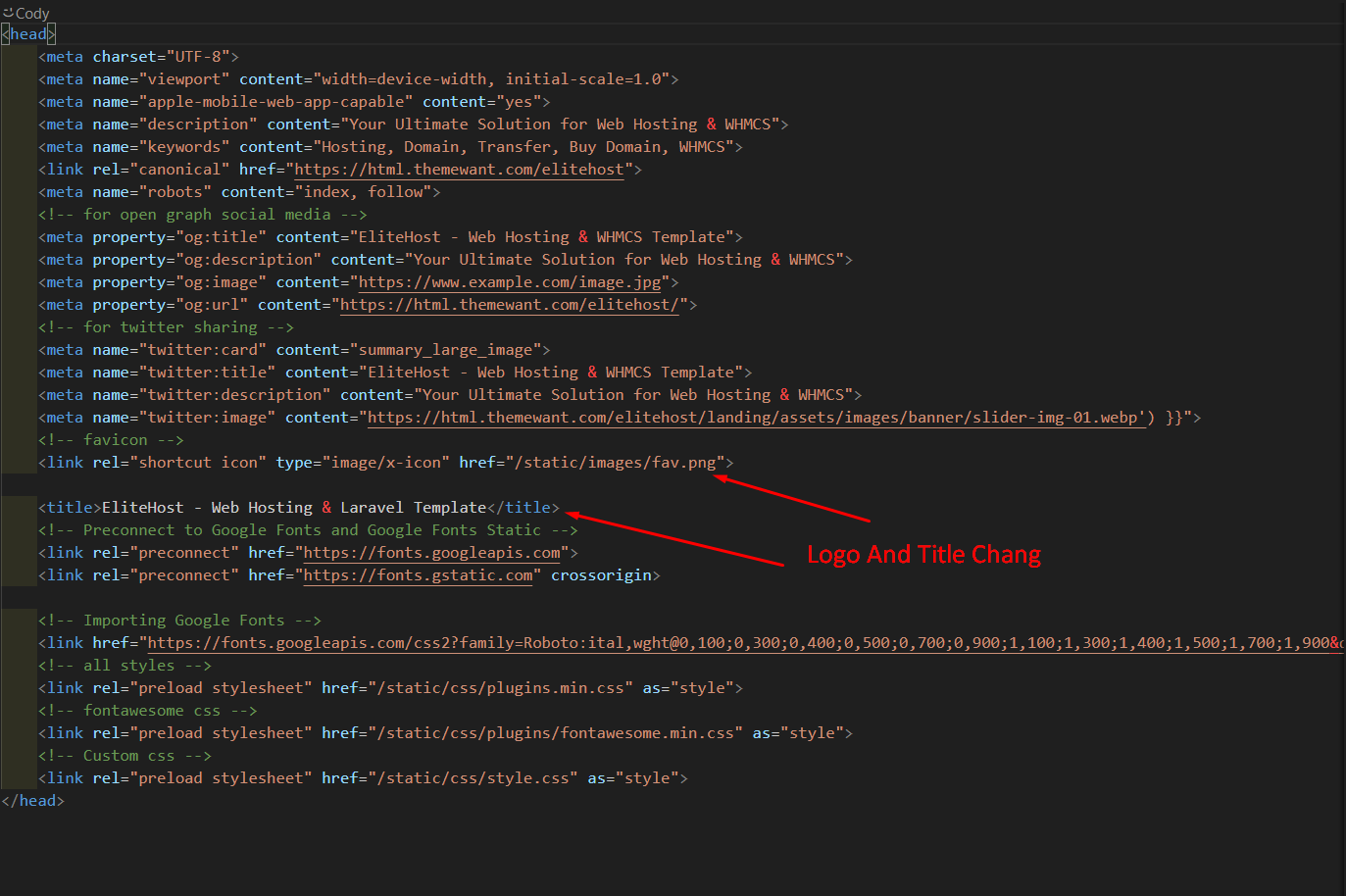
3.1. Change Site Title and Favicon
To change your Site title and Favicon open the EliteHost in your editor and go to the location by following screenshot which are given bellow.
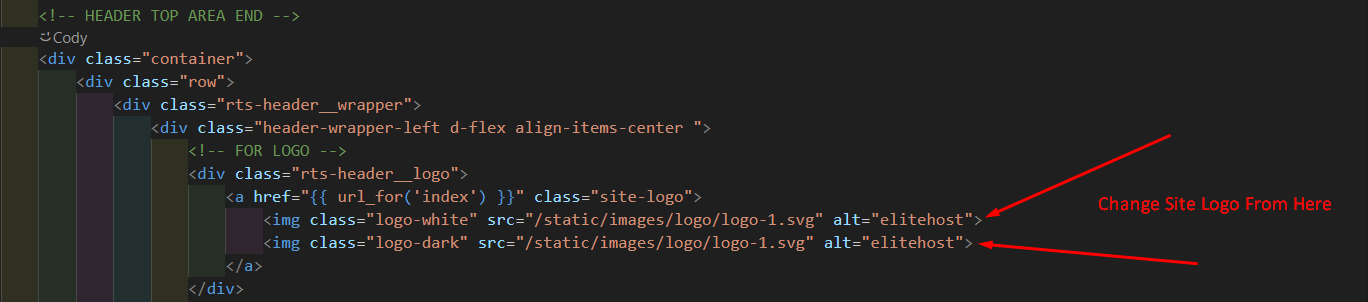
3.2. Change Logo
To change your Site Logo open the EliteHost in your editor and go to the location by following screenshot which are given bellow.
3.3. Customize Menu
To customize your Site Menu open the EliteHost in your editor and go to the location by following screenshot which are given bellow.
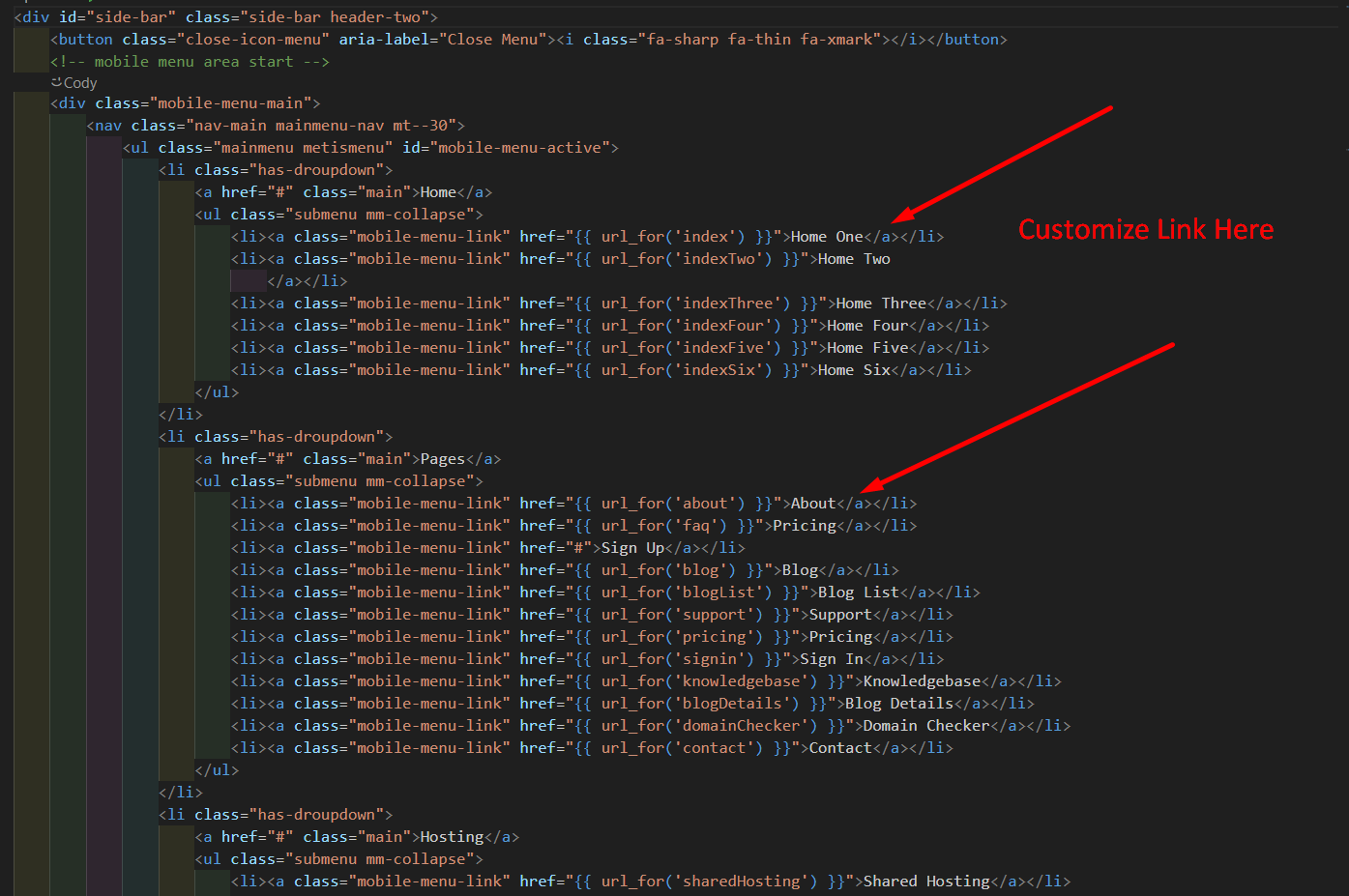
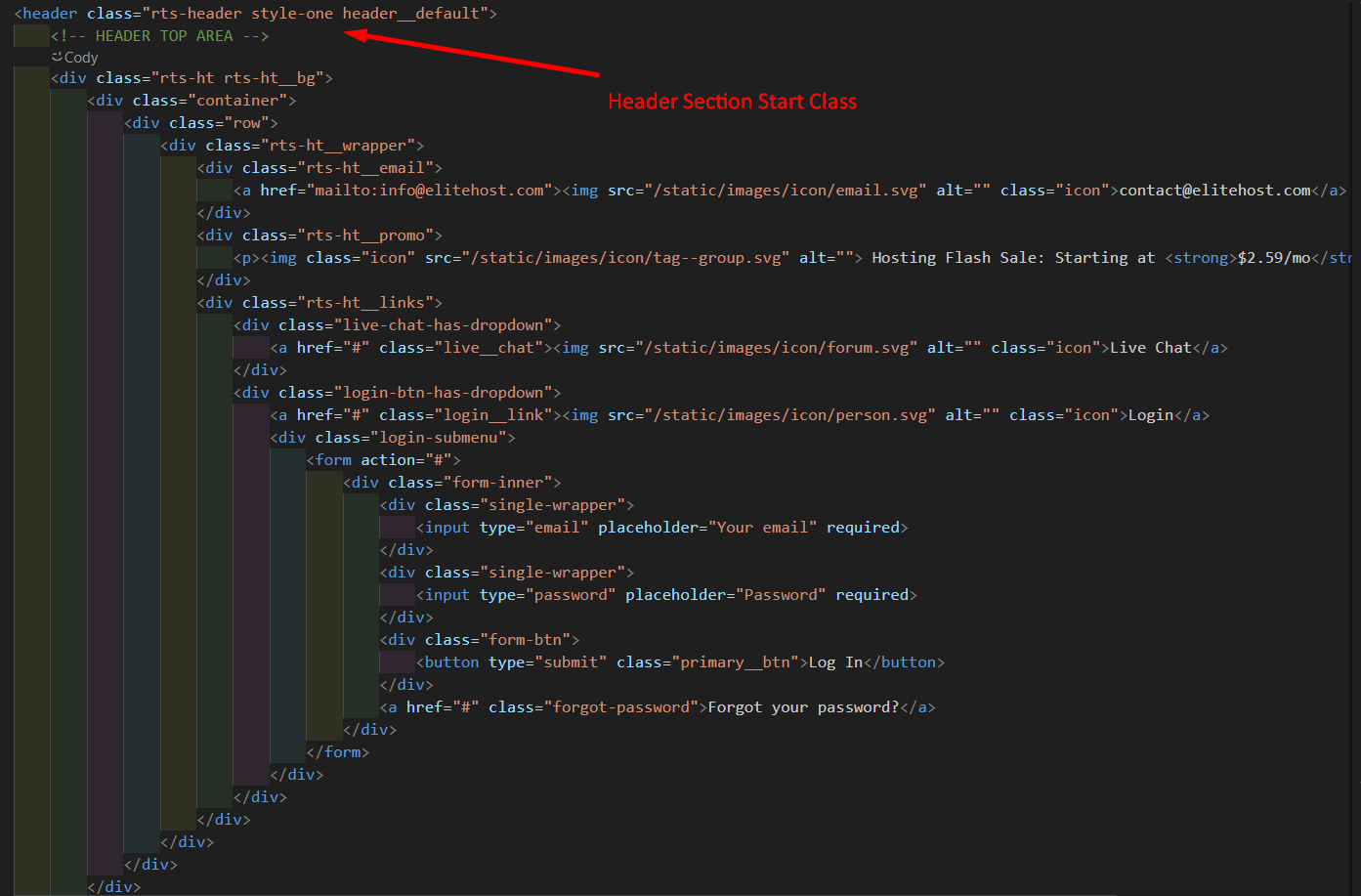
4.1. Header
From the located file in the image you can customize you site header layout
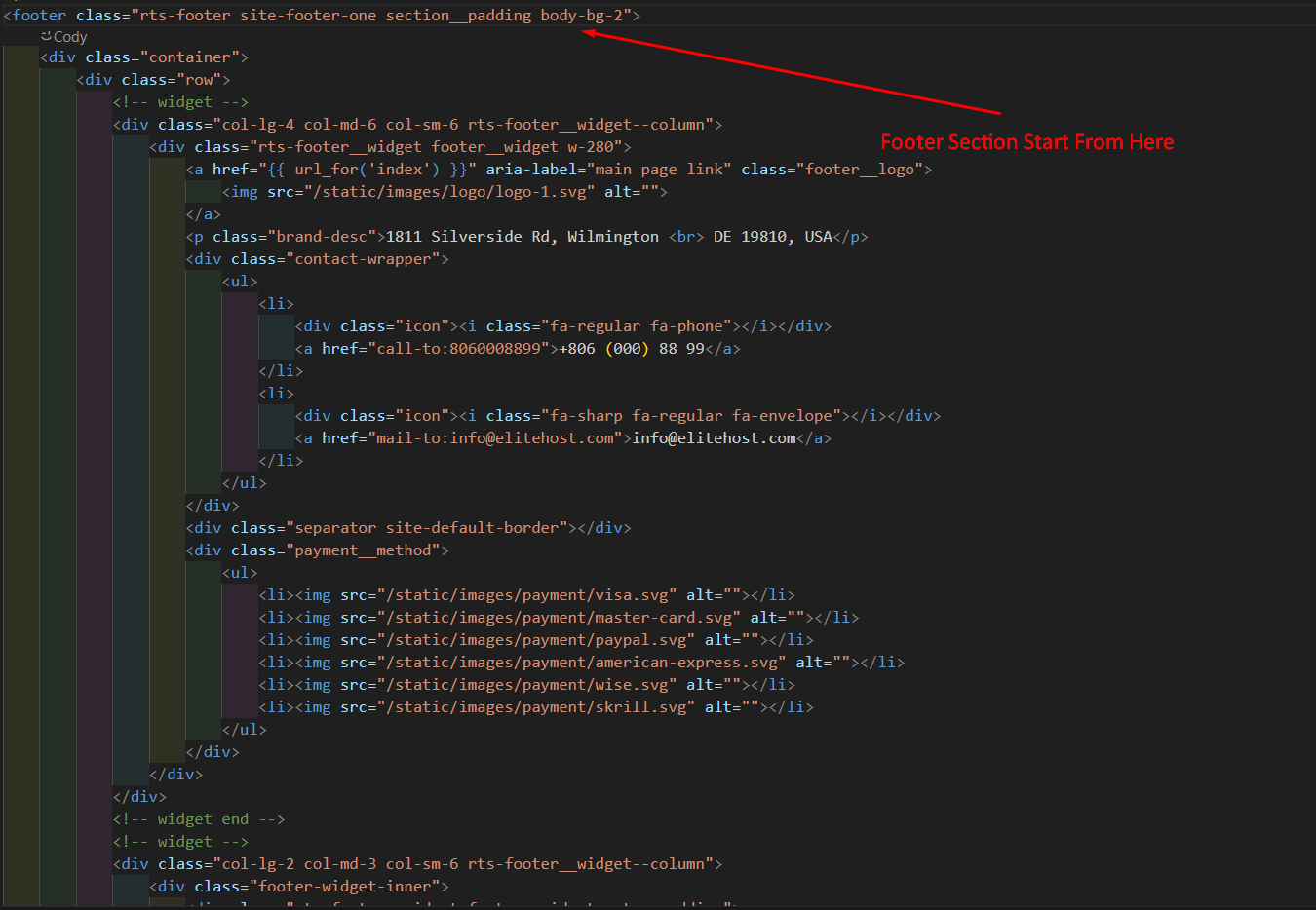
4.2. Footer
Here is the file where you can customize your footer
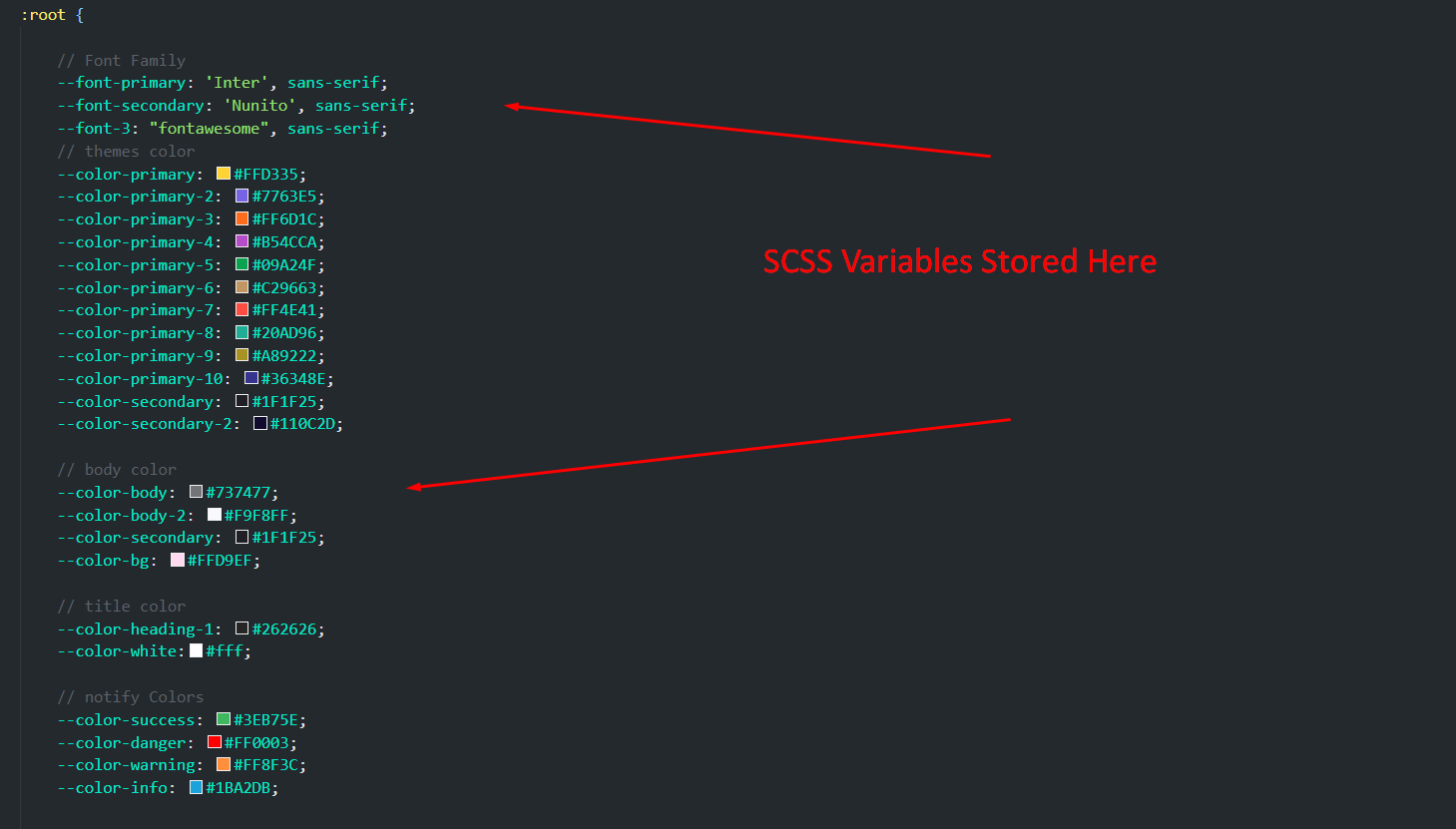
4.3. Global Color (SCSS)
To change EliteHost Global Color using SCSS
4.3. Global Color (CSS)
To change EliteHost Global Color using CSS
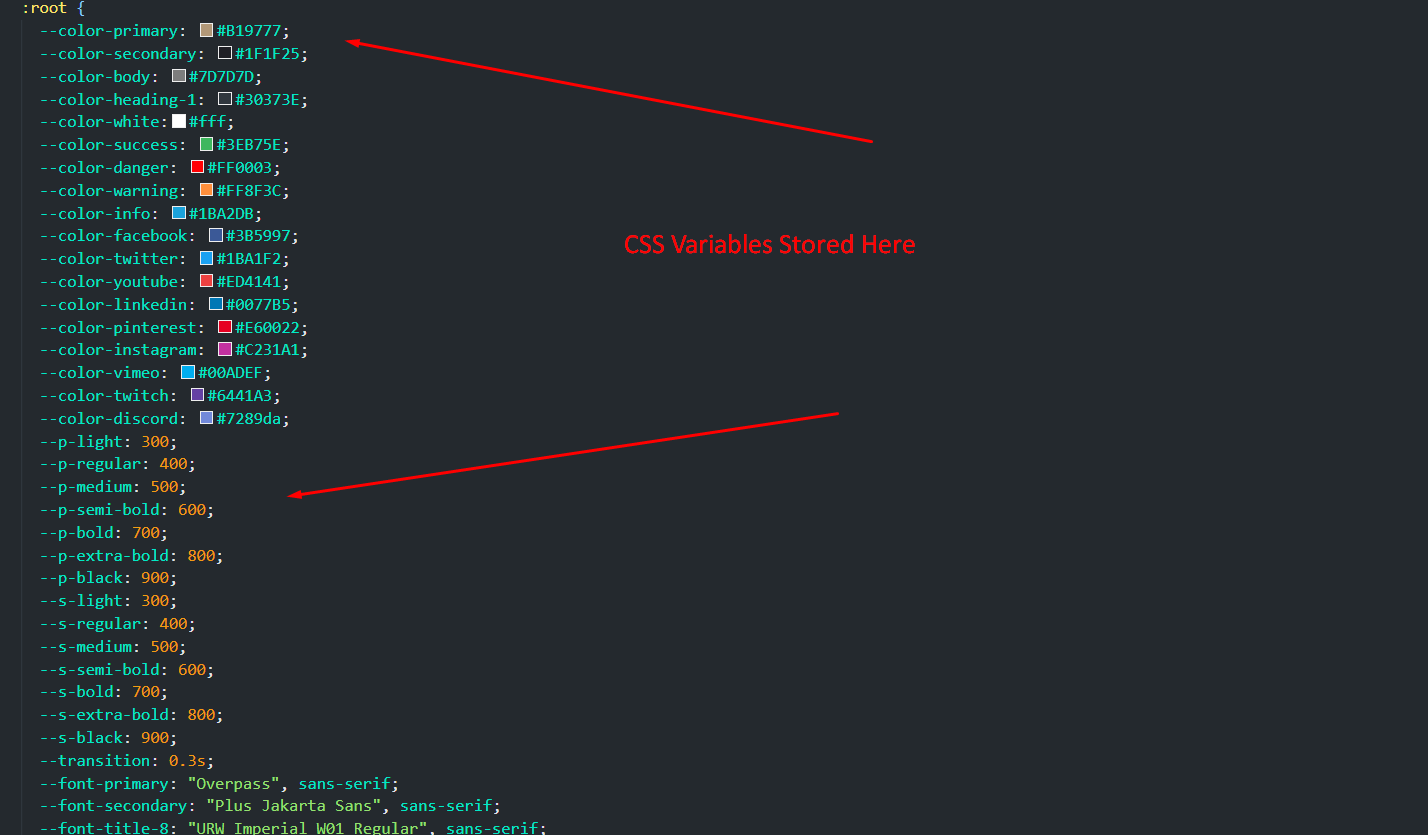
4.5. Content
To customize your Site Content open the EliteHost in your editor and go to the location by following screenshot which are given bellow.
Page Content:
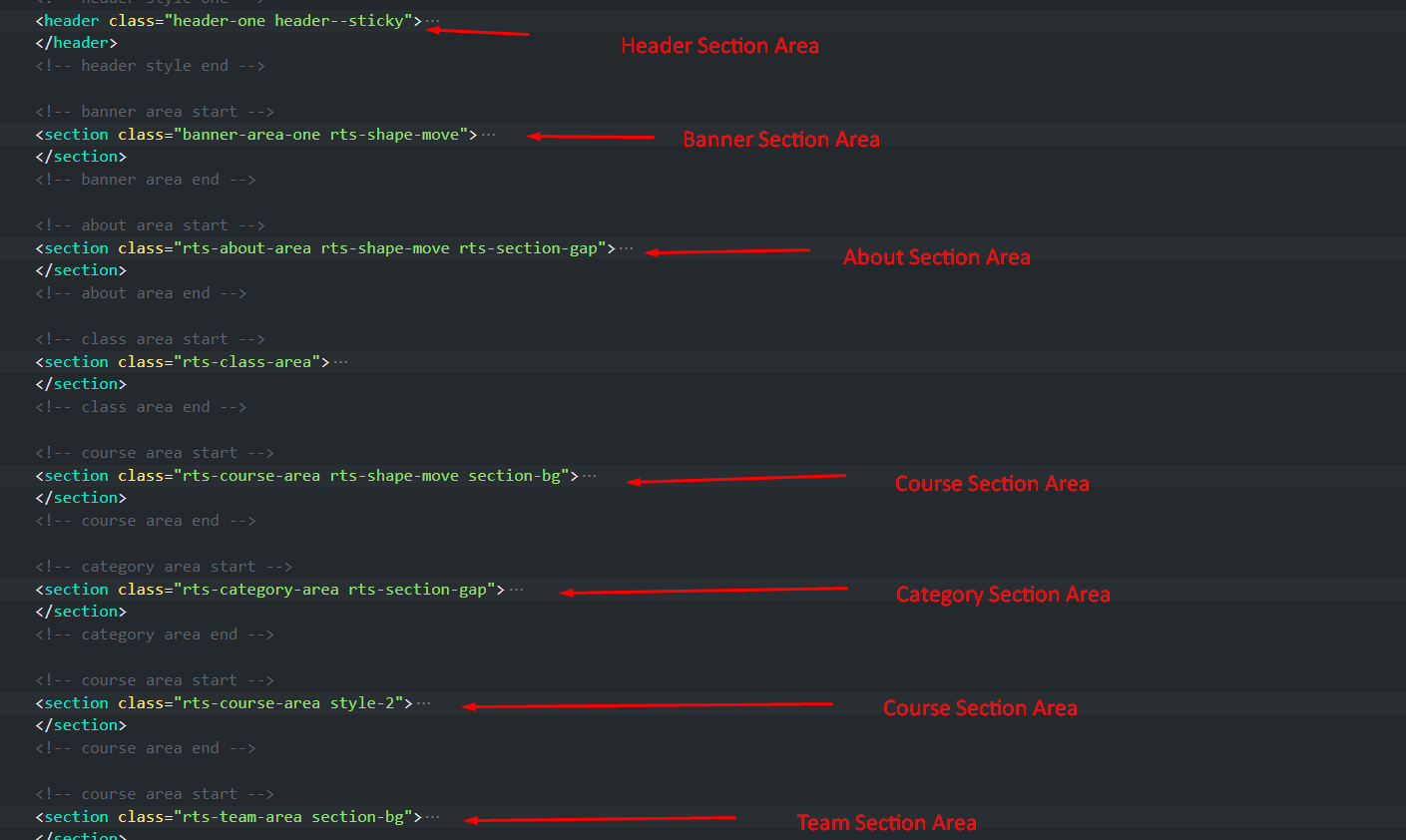
5. Support
Support Scope
Included in Free Support Scope:
- Fixing bugs
- Helping clients in changing site contents by sending instructions that couldn’t be covered by documentation
NOT Included in Free Support Scope:
- Any type of custom changes
- Any type of request to update clients’ site contents
Paid Support Scope:
Paid support is not a part of Free Support when you purchase the template from themeforest. We understand that some clients need custom changes while using our template. For that we kept an option for paid support which includes:
- Custom change request
- Custom pages
- Custom features
We kept a flat rate for our paid support which is $15/hour.
Support Ticket
Please send your support request here. You will response within 1 business day.
Regards,
Parv-Infotech Support Team